Use AI Agent
Choose references, review a generation plan, and refine the result on your ShoeCatch canvas.
Use AI Agent to work on product designs through a conversation inside ShoeCatch. Open the agent beside your canvas, choose the images or other materials it should use, and describe the result you want. The agent can prepare the canvas for your task, connect references, and run supported generation tasks after you review the plan.
The conversation is where you explain the task and request changes. The current canvas is where you review the source images and generated results. You can keep both open while you work. You do not need to connect Claude or ChatGPT to use AI Agent. If you prefer working in one of those apps, see MCP.
This guide follows one simple task: create a color variation from a shoe reference, review it, and change one detail in the next request.
ShoeCatch AI can make mistakes. Review important information and generated results. See Review AI answers and generated results for what to check and how to request corrections.
1. Open the canvas and start a conversation
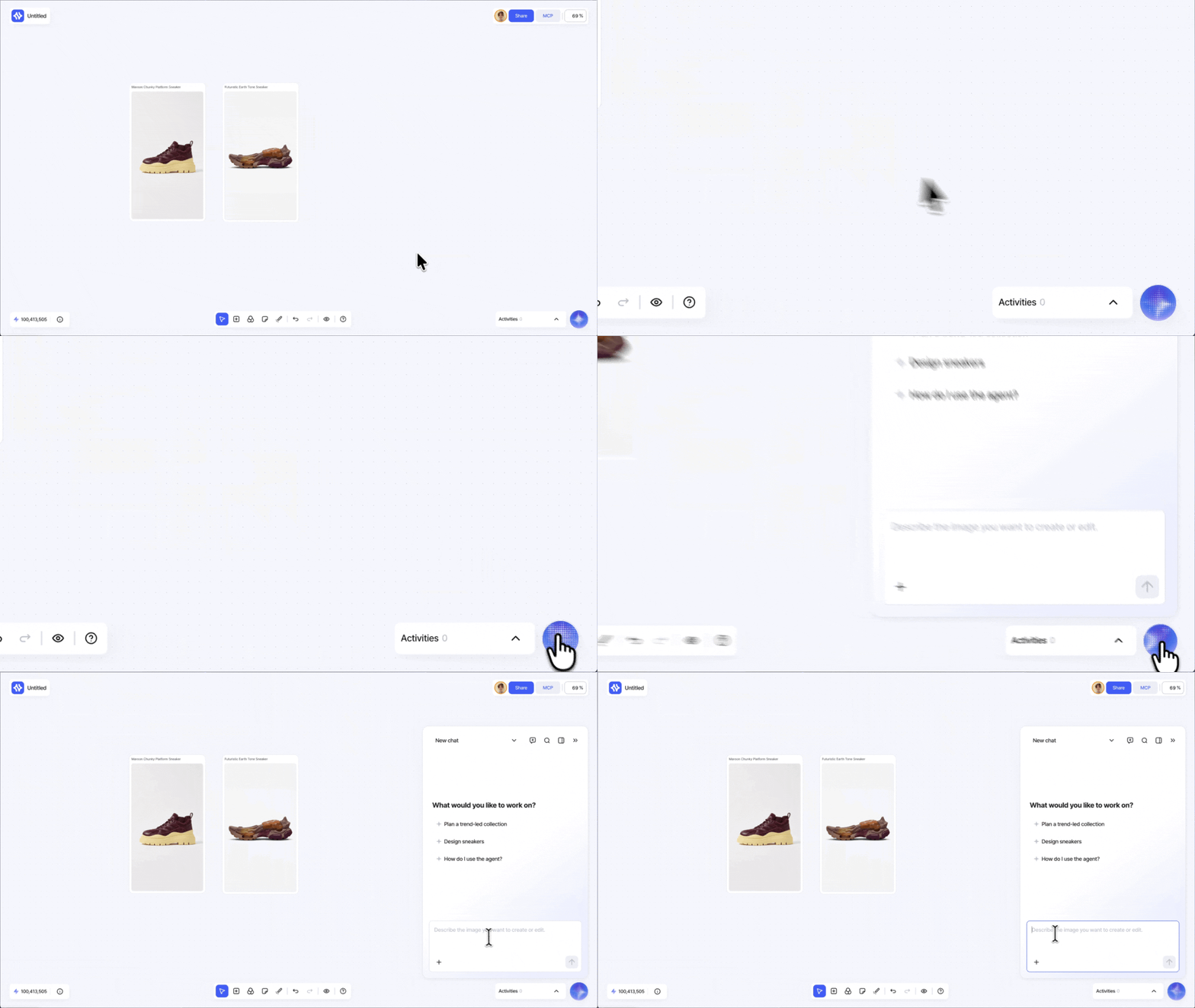
Open the canvas where you want to work. Click the Agent icon at the bottom right to open the conversation panel.
Use New chat to begin a separate task, or Chats in the panel header to reopen an earlier conversation. Check the canvas name before starting. A new conversation has its own chat history, but it still works with the canvas you have open.
You should now see a message field beside the canvas. Keep the reference image and conversation visible so you can check what the agent is working with.
2. Choose the reference for this task
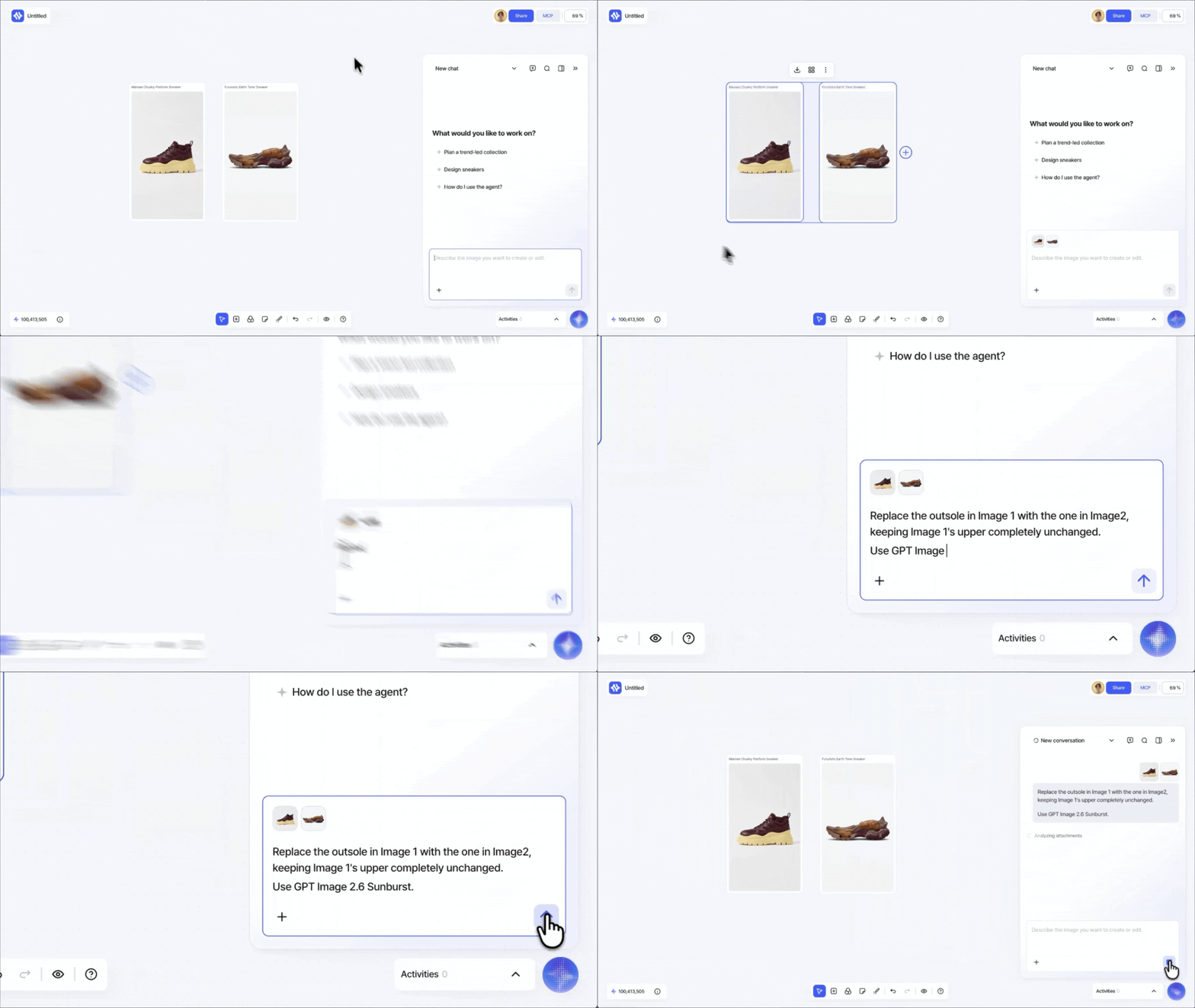
If your reference is already on the canvas, click its card while the agent panel is open. These canvas items are called nodes. It appears in the message's attachment list. Check that the intended image is listed before sending your request. Remove references you do not want to include.
If the reference is on your device, use Attach files to add an image or PDF. A product photo, sketch, material swatch, or design brief can help explain the task. Check that the upload has finished and the file can be read.
For this first task, use one clear shoe image. With several references, explain the role of each one, such as the shape to keep, the material to apply, or the colors to use. Selecting a reference prepares your message; you still need to send the request.
3. Explain what to change and what to keep
Start with one specific change. Describe the reference, the desired result, and any details that must remain unchanged. Include the number of images and the view you need.
For example, select your shoe reference and send:
Create one side-view image of this shoe in navy. Keep its shape, materials, sole, logo, and panel layout. Show me the plan and estimated credits before generating.
Review your message and attachment list, then click Send. The agent may ask for a missing reference or clarify the request before preparing the work. Answer in the same conversation so the request stays together.
You can also ask for ideas before creating images. For example, ask for three written color directions, choose one, and then request the image. Describing three ideas is different from generating three images.
4. Review the plan and approve generation
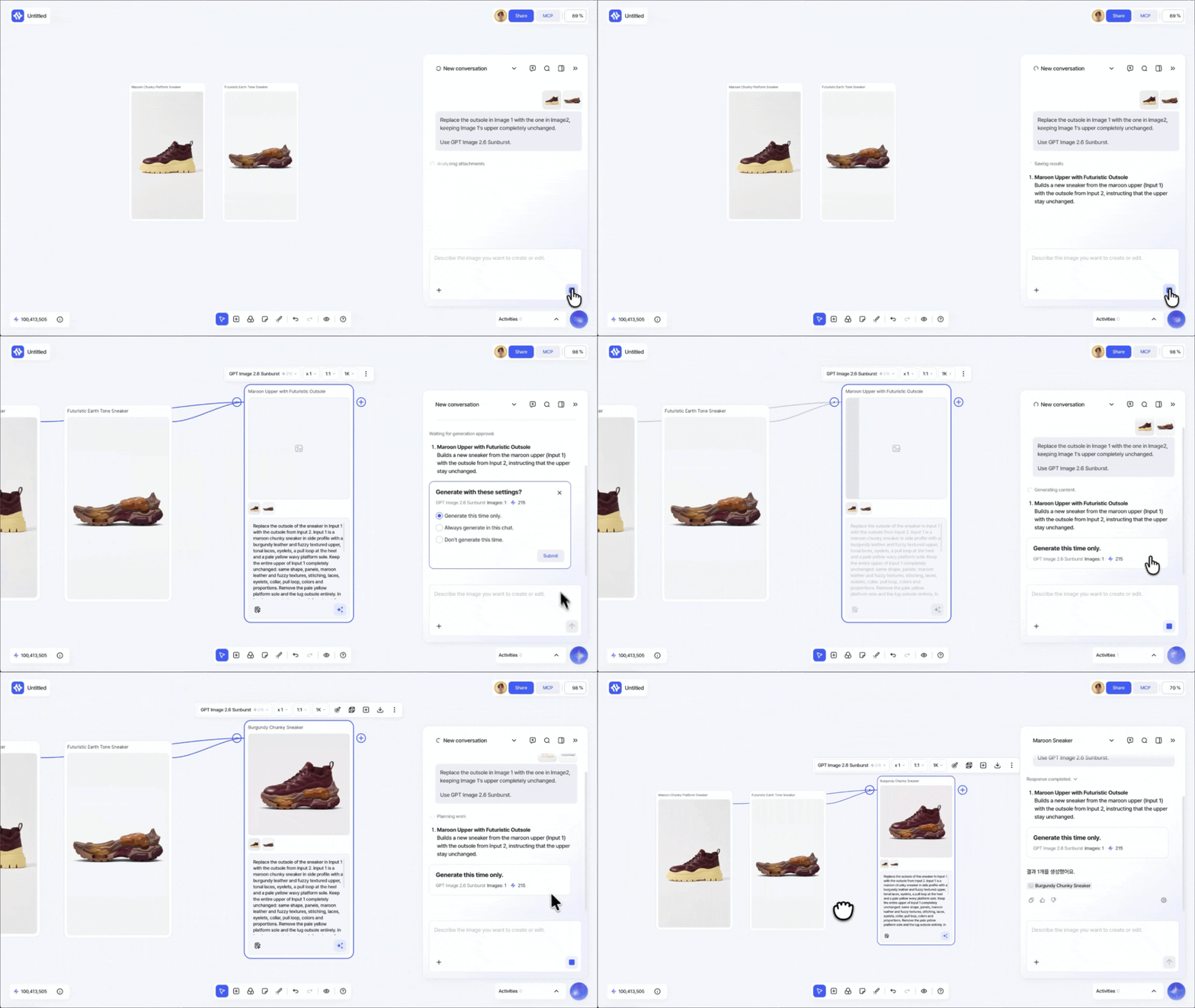
When a request needs generation, the agent prepares a plan. Check the target nodes and references, model, settings, number of outputs, estimated credits, and workspace whose credits will be used.
For the example above, check that the plan uses the intended shoe reference and creates one image. If it proposes the wrong model, reference, or number of images, ask for a correction before approving.
After approval, follow the progress in the conversation. Expand the progress details if you need to see the current steps.
General conversation and planning are free in the initial release. Running image, video, or text generation nodes uses credits at the applicable model rate. A text reply in the conversation is different from running a paid text generation node.
Credits are deducted before generation runs. Credits for outputs confirmed as failed are restored. If your balance cannot cover the full request, some outputs may run while the rest are marked as not generated because of insufficient credits. Check what completed before retrying.
5. Check the result on your canvas
When generation finishes, review the actual result node on the current canvas. Compare it with the reference image and the details in your request. For this example, check that the color is navy and that the sole, materials, logo, and panel layout still match your reference.
The agent's reply helps you follow the task, but a completed generation still needs your design review. If the image is missing or the response is unclear, check the node's status and ask about the existing task before requesting another generation.
Show me which node contains the result from this request. Tell me whether the generation finished. Do not generate another image.
Results remain as canvas nodes that you can use in later work. When a result uses an existing node as a reference, a connection shows that relationship. Images do not need a connection simply because they were created in the same conversation.
6. Continue with a small, clear revision
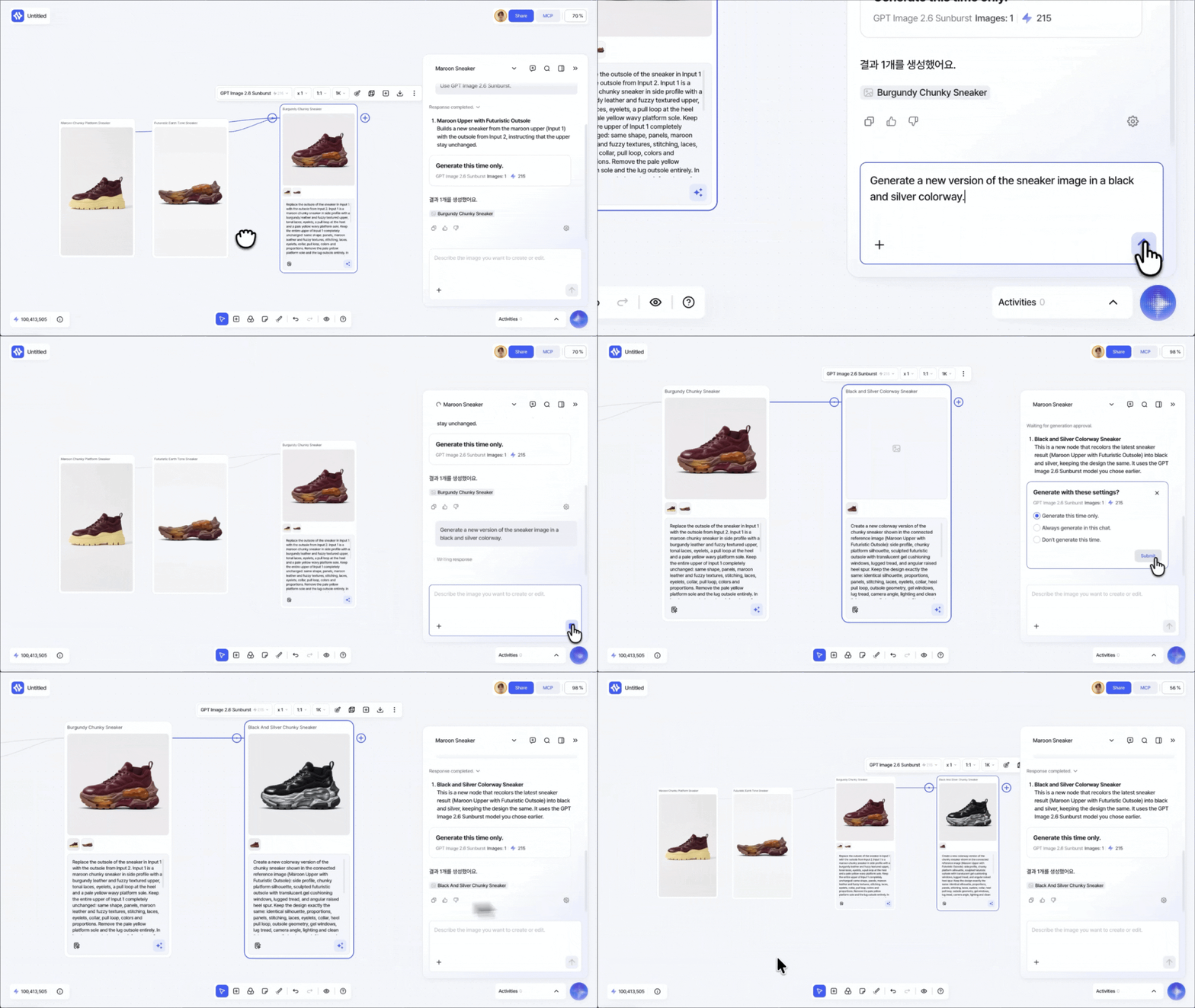
Continue in the same conversation when you are refining the result. Click the result node you want to change and check the attachment list. This helps distinguish the new result from the original reference or other designs on the canvas.
Say what to change and what must stay the same:
Use this navy result. Change only the upper material to mesh. Keep the color, shape, sole, logo, panel layout, and side view. Create one image and show me the updated plan and estimated credits first.
Check that the next plan uses the intended result, then review the cost and approval scope before running it. After generation, compare the updated image on the canvas with the earlier result.
You can repeat this process for another color, material, or view. You do not need to rewrite the entire brief for each small change, but name the exact result when more than one image could match your request.
Start with a preset when you need an idea
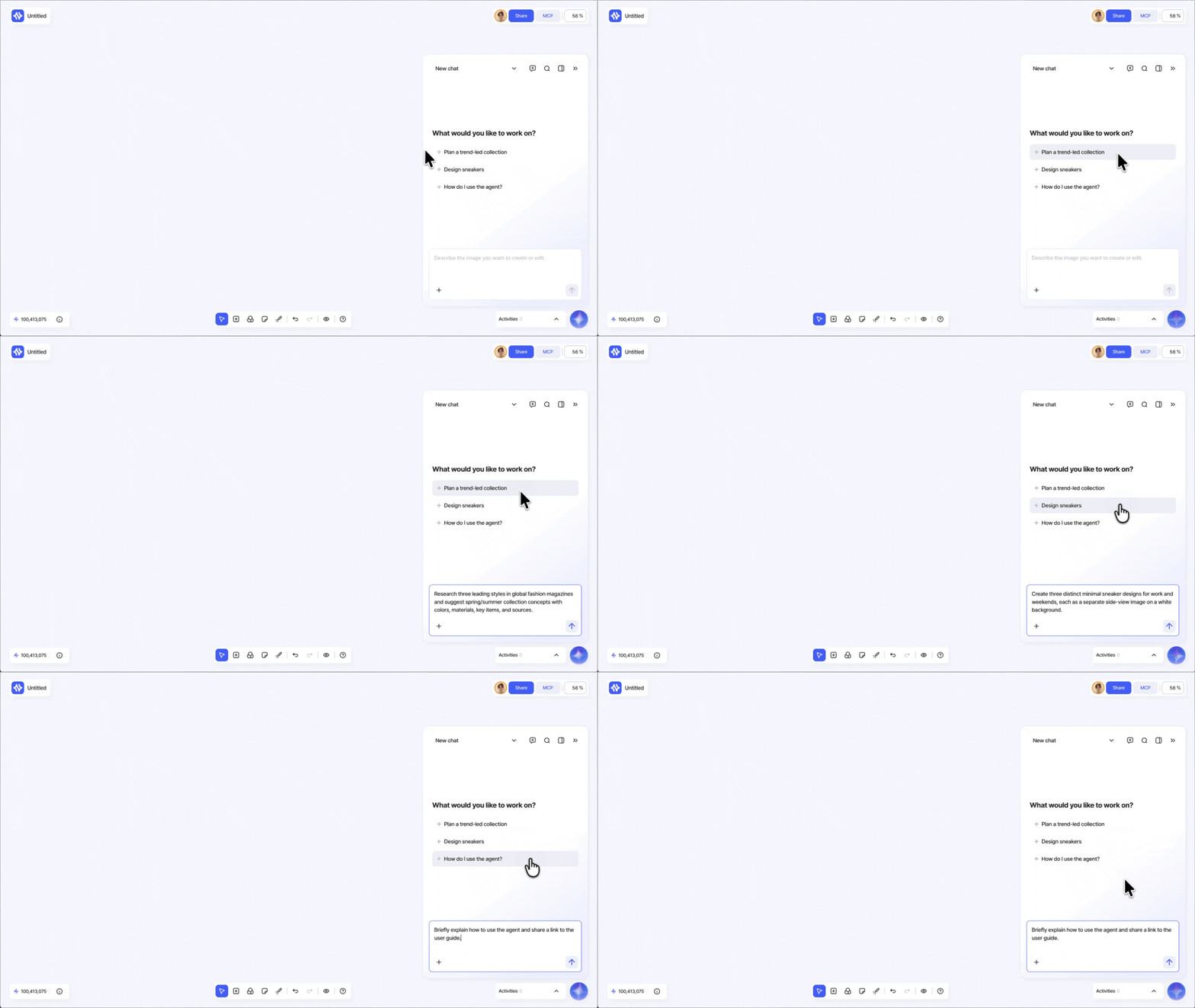
Presets provide example prompts for tasks such as sneaker design, colorways, flat sketches, virtual try-on, and collection planning. Choose a relevant preset in the agent panel, or use the agent usage guide for help getting started.
A preset fills the message field with example text. Add your own files or click the canvas nodes the task should use, adjust the wording, and send it when ready. Choosing the preset alone does not run the task. If required references are missing, the agent asks you to add them. Preset questions and responses are available in Korean and English.
Use several references or larger files
The agent can use canvas images, prompt nodes, color palettes, and groups, including nodes added from the Asset Library. Explain which items it should use or compare. A group counts as one reference regardless of the number of nodes inside it.
The file limit and canvas reference limit are separate. One message can contain up to 10 uploaded files plus 10 node or group references. Check the attachment list after selecting several items. If a file is only partly processed or cannot be read, narrow or replace the reference before relying on it.
For multiple references, give each one a clear role:
Use the shape from image 1, the fabric texture from image 2, and the colors from the palette. Keep the logo and panel lines unchanged.
For a view sheet, distinguish one combined image from separate outputs. For example, request “one image containing front, side, and back views” if that is the result you need.
Explore ideas before generating images
You can ask the agent to research the web and develop product or collection concepts. Specify the season, customer, and use case, and ask for source links so you can review the basis for each proposal.
Research three current footwear design directions with source links. Suggest concepts for a commuter sneaker collection, including colors, materials, and key design details. Keep this to written proposals for now.
Compare the written concepts first, then choose a direction and request the images you need. You can also ask for flat sketches, virtual try-on images, or a combination of references. Supported image, video, and text generation models and settings depend on your workspace. If you want a specific model, name it and check the model shown in the plan.
Reopen a conversation or stop ongoing work
Use the panel header to start a new conversation, reopen an earlier one, or manage archived conversations. Archiving a conversation does not remove its canvas results.
Reopen the earlier conversation when you want to continue its task. For a different task or a new set of references, start a new conversation and identify the canvas items it should use. The current canvas is still available, but the new conversation has a separate chat history.
If you need to change direction while the agent is working, stop the response and explain the change in the same conversation. Stop prevents remaining work that has not started. A generation already running on the server can still finish and use credits. Stopping alone does not restore those credits; a confirmed generation failure does.
Closing the agent panel or browser does not cancel an active generation. When you return, check the conversation's progress and the actual result nodes before starting the task again.
Check your permissions and credit workspace
AI Agent uses your existing canvas permissions. It does not grant additional access or a higher credit limit.
For Owner, Admin, and Member, generation uses the canvas workspace's credits. A guest generating in a Public canvas also uses the canvas workspace's credits. In a Private canvas, a guest uses the workspace they selected; its name appears below the credit balance.
Before approving generation, check the credit workspace in the plan, especially when working in a shared canvas.
If the result is not what you expected
The agent missed a reference
Check the message's attachment list and any partial-processing status. Identify the exact reference and explain what the agent should take from it. If necessary, remove unrelated attachments and send a more focused request.
The plan uses the wrong model or number of images
Correct the request before approving. If you want several views in one sheet, say “one final image” and list the views it should contain.
The result changed a detail you wanted to keep
Select the result and name the exact shape, color, material, or detail that needs correction. Ask to preserve the other parts. Review the next plan and compare the actual output again.
Generation is delayed, incomplete, or failed
Check which result nodes succeeded, failed, or have not run. Ask for the current task status and review available credits before retrying. Avoid sending the full generation request again until you know which outputs are missing.
If a new conversation shows an execution-limit message, first check whether any nodes were created. If the problem repeats, contact support with the request, references, and visible result or error. You can also use thumbs up or thumbs down on an agent response to give feedback.
You cannot generate or edit
Check your canvas editing permission, available credits, and the model's supported inputs and settings. A guest with view-only access can ask about the canvas but cannot run generation.
Was this helpful?
Still need help? Ask the team